 Mason's Build Logs
Making Your Vite App Offline-Ready with PWA
I love the web, but I hate the “Dinosaur Game.”
You know the one—the little T-Rex that mocks you when your internet cuts out. For a recent project, I wanted to ensure my users never saw that dino. I wanted my web app to feel like a native app: installable on the home screen and fully functional even when the Wi-Fi is dead.
Enter Progressive Web Apps (PWA).
While the concept of PWA has been around for years, the tooling has finally matured. If you’re using Vite (and you should be), the vite-plugin-pwa makes this process almost trivial.
Here is how I implemented it.
1. Installation
First, we need the plugin. It’s a dev dependency because it does its magic during the build process.
npm i vite-plugin-pwa -D
2. Basic Configuration
In your vite.config.ts, import the plugin and add it to your plugins array.
The key configuration here is registerType: 'autoUpdate'. This tells the browser to immediately update the Service Worker when a new version is deployed, rather than waiting for the user to close all tabs.
// vite.config.ts
import { defineConfig } from 'vite'
import vue from '@vitejs/plugin-vue'
import { VitePWA } from 'vite-plugin-pwa'

export default defineConfig({
  plugins: [
    vue(),
    VitePWA({
      registerType: "autoUpdate",
      devOptions: {
        enable: true, // Enable PWA in development mode for testing
      },
      // ... more config below
    }),
  ],
})
3. The Manifest (Making it “Installable”)
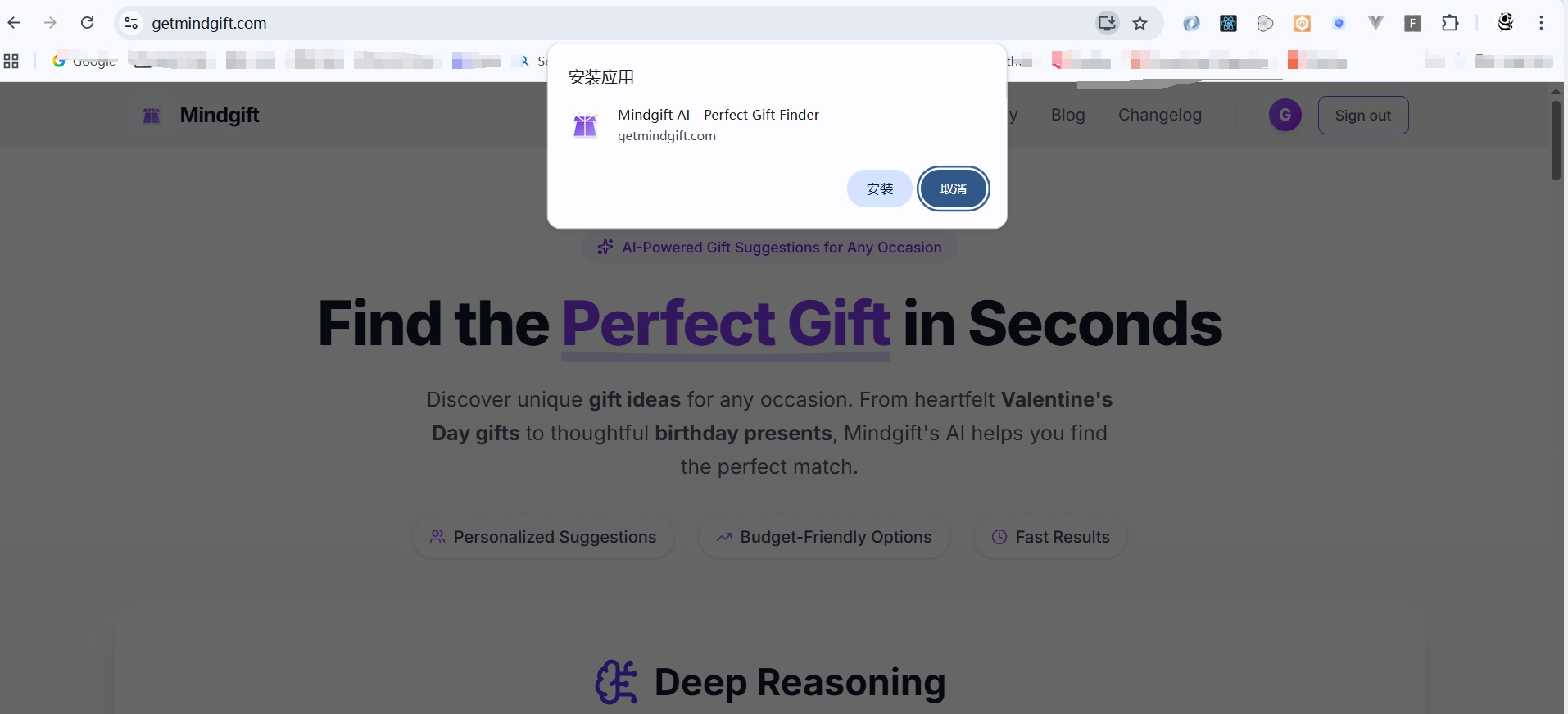
To let users add your app to their home screen, you need a manifest.webmanifest. You could write this manually, but vite-plugin-pwa lets you define it right in the config.
This metadata controls how your app looks on a smartphone home screen.
VitePWA({
  manifest: {
    name: 'My Awesome App',
    short_name: 'AwesomeApp',
    description: 'A Vite PWA demo',
    theme_color: '#fafafa',
    icons: [
      {
        src: '/icons/icon-192x192.png',
        sizes: '192x192',
        type: 'image/png',
      },
      {
        src: '/icons/icon-512x512.png',
        sizes: '512x512',
        type: 'image/png',
      }
    ],
    // Optional: Add shortcuts for quick actions
    shortcuts: [
      {
        name: "Open Home",
        short_name: "Home",
        url: "/",
        icons: [{ src: "/favicon.ico", sizes: "36x36" }],
      },
    ]
  },
})
4. Offline Caching with Workbox
The real power of PWA is the Service Worker. It sits between your app and the network, intercepting requests and serving cached files when offline.
vite-plugin-pwa uses Google’s Workbox under the hood. By default, it uses the generateSW strategy, which automatically caches your build assets (JS, CSS, HTML).
If you want to cache external API calls or images, you can configure the workbox option:
VitePWA({
  workbox: {
    runtimeCaching: [
      {
        // Cache Google Fonts
        urlPattern: /^https:\/\/fonts\.googleapis\.com\/.*/i,
        handler: 'CacheFirst',
        options: {
          cacheName: 'google-fonts-cache',
          expiration: {
            maxEntries: 10,
            maxAgeSeconds: 60 * 60 * 24 * 365 // <== 365 days
          },
          cacheableResponse: {
            statuses: [0, 200]
          }
        }
      },
      {
        // Cache API responses (StaleWhileRevalidate is great for data)
        urlPattern: /^https:\/\/api\.my-app\.com\/.*/i,
        handler: 'StaleWhileRevalidate',
        options: {
          cacheName: 'api-cache',
          expiration: {
            maxEntries: 100,
            maxAgeSeconds: 60 * 60 * 24 // 1 day
          },
        }
      }
    ]
  }
})
Why This Matters for Indie Hackers
As indie developers, we often ignore “reliability” in favor of features. But for a user, reliability IS a feature.
If your app loads instantly and works on a flaky subway connection, you’ve already beaten 90% of the competition. And with tools like vite-plugin-pwa, the implementation cost is practically zero.
No more dinosaurs. Just apps that work.