 Enjoy Today
Chrome Architecture: How Many Processes for One Tab?
Editor’s Note: To write efficient code, you need to understand where it runs. Following our guide on Chrome Extensions, let’s look deeper into the engine itself. Why does opening a single tab spawn multiple processes in your Task Manager?
Context
In the early days of the web, browsers were single-process applications. If one tab crashed, the whole browser went down. If one page’s JavaScript ran an infinite loop, the entire application froze.
Google Chrome changed the game with its Multi-Process Architecture. It treats each tab almost like a separate application.
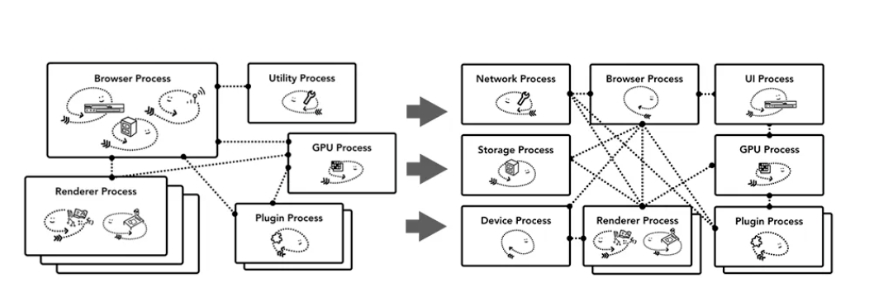
The Architecture: The Big 4
When you visit a website today, Chrome spins up at least four distinct types of processes. This isolation improves stability, security, and performance.
1. Browser Process (The Boss)
This is the main process. It controls the “chrome” of the application—the address bar, bookmarks, back/forward buttons, and coordinates other processes. It also handles file storage and network requests (in some architectures).
2. GPU Process (The Artist)
Originally, browsers used the CPU for everything. As web pages became more graphical (3D CSS, Canvas, WebGL), Chrome offloaded this work to the GPU. Even for simple pages, the GPU process handles the final compositing of the UI.
3. Network Process (The Courier)
Responsible for fetching data. It used to be a thread inside the Browser Process but was spun out to improve stability. It handles DNS, TLS, and HTTP requests.
4. Renderer Process (The Worker)
This is where the magic happens—and where your code lives. Each tab usually gets its own Renderer Process. Its job is to turn HTML, CSS, and JavaScript into pixels on the screen. It contains the Blink rendering engine and the V8 JavaScript engine.
Note: Extensions also get their own isolated processes to ensure that a buggy ad-blocker doesn’t crash your banking tab.
Deep Dive: Inside the Renderer Process
The Renderer Process is the most critical for developers. It’s multi-threaded, and understanding these threads explains many common performance bottlenecks.
The GUI Rendering Thread
It parses HTML to build the DOM tree and CSS to build the Render tree. It handles layout (reflow) and painting (repaint).
Critical Rule: The GUI Thread and the JS Engine Thread are mutually exclusive. When JavaScript is executing, the GUI thread is frozen. This is why a heavy calculation in JS will make your page look “stuck.”
The JavaScript Engine Thread (V8)
This is the famous “single thread” of JavaScript. It executes your scripts. Because it blocks the GUI thread, you should never run long synchronous tasks here.
The Timer Thread
setTimeout and setInterval aren’t counted by the JS engine (since it might be busy blocking). A separate thread handles the timing and pushes the callback into the JS Event Loop queue when the time is up.
The Async HTTP Thread
When you use XMLHttpRequest or fetch, a separate thread handles the connection. When the state changes (e.g., data received), it pushes the callback to the JS queue.
The Event Trigger Thread
Manages the task queue. It listens for events (clicks, mouse moves, async responses) and pushes their callbacks into the execution stack when the JS engine is idle.
Results & Learnings
Understanding this architecture changes how you code:
- Don’t Block the Main Thread: Heavy JS freezes the GUI. Use Web Workers for heavy lifting to keep the Renderer responsive.
- Process Isolation Costs Memory: Chrome is “memory hungry” because each process has its own overhead. But the trade-off is that one crashing tab doesn’t kill your browser.
- Async is Key: The browser is designed to be asynchronous. Embrace it.
About the Author
Amiko is an indie developer obsessed with performance. Follow my journey on X (Twitter) or subscribe to the RSS Feed.